 Salsamatic
Apple Watch + iPhone
Track your dancing.
Salsamatic records dance sessions on your watch. It estimates how long you danced, how long you rested and how many songs you danced to.
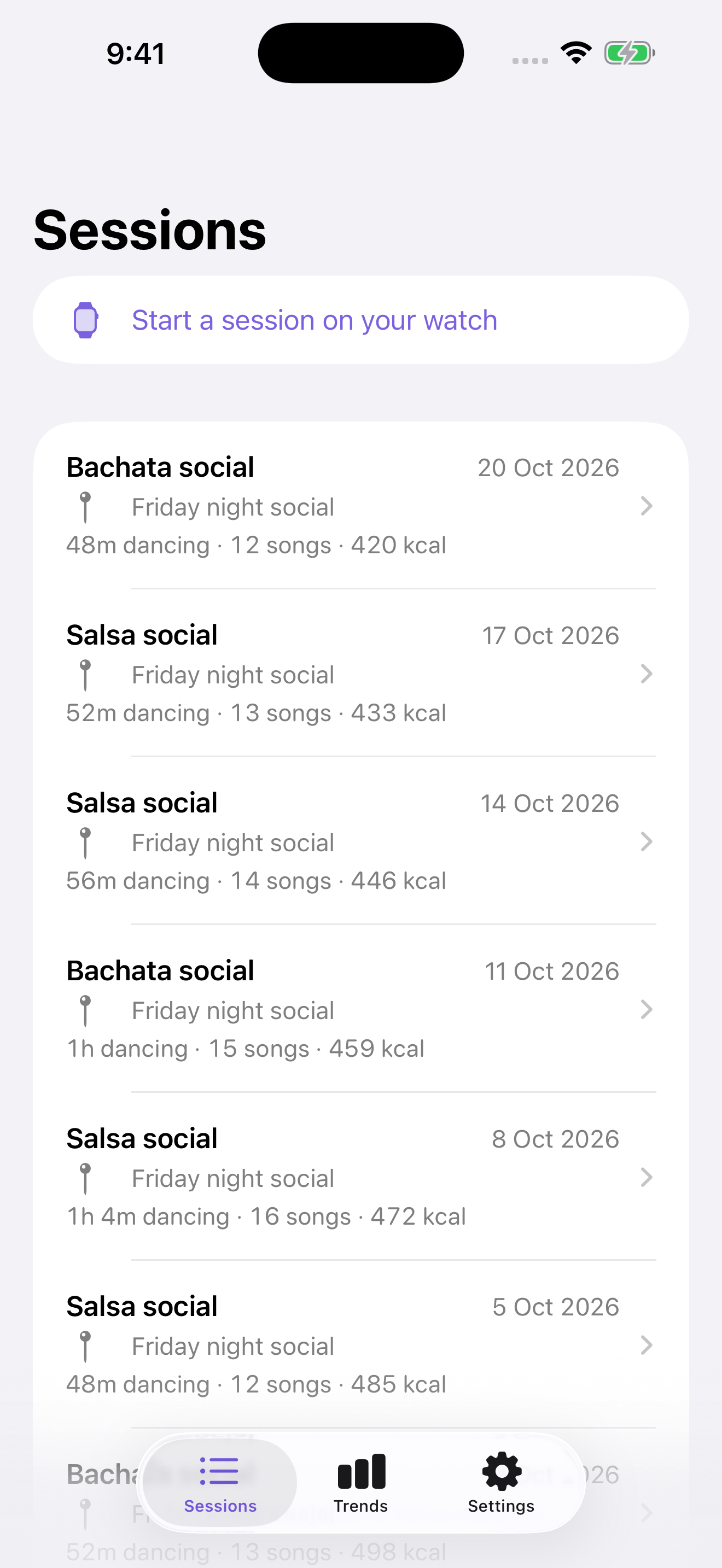
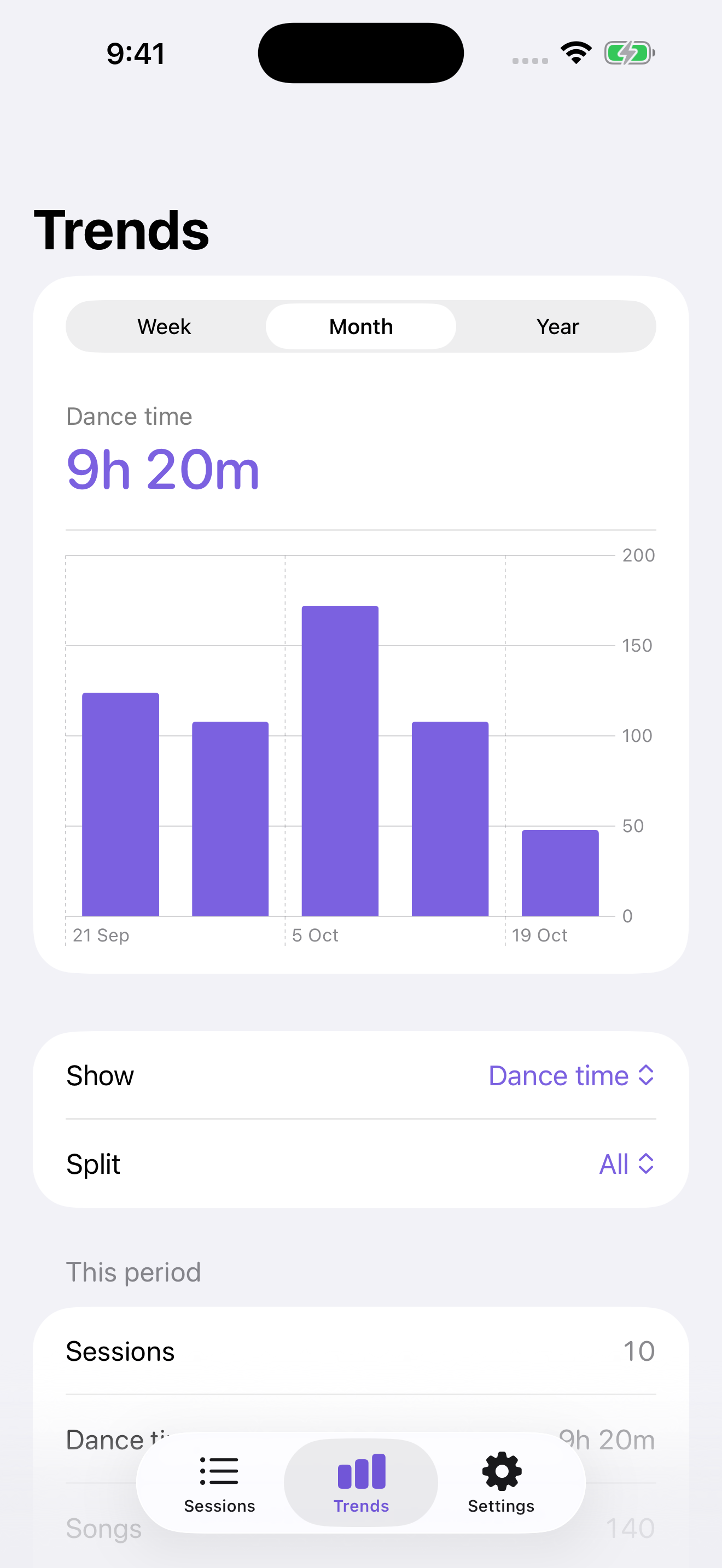
Heart rate, steps and active energy are recorded with the session. Your iPhone shows a timeline, a breakdown by song and trends across your sessions.
Currently in internal TestFlight testing. Requires an iPhone with iOS 26 or later and a paired Apple Watch with watchOS 26 or later.
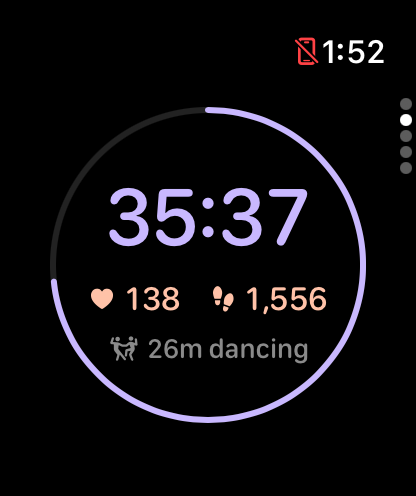
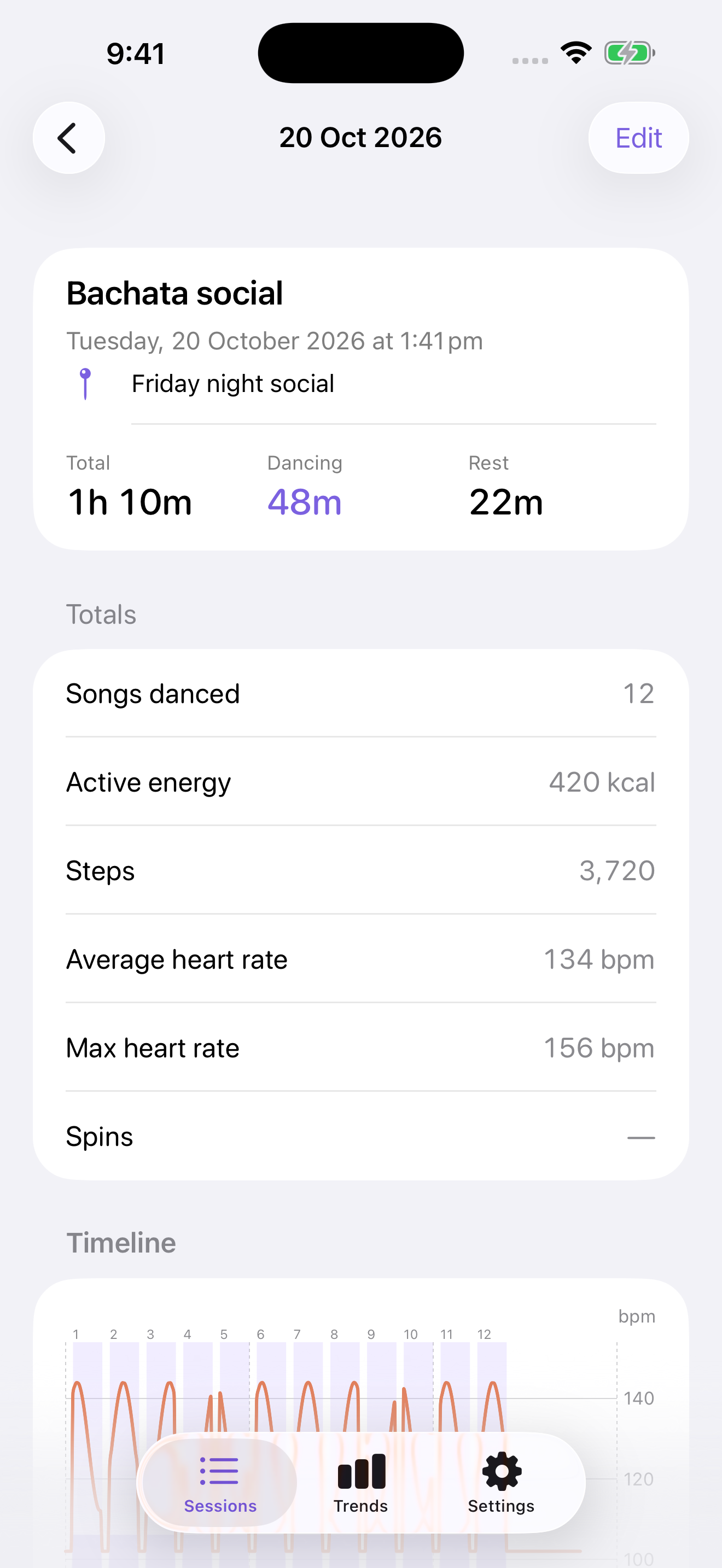
Screenshots from the app running in the simulator, with sample sessions.
Dance time and rest time, counted separately.
Start a social, class or practice session and choose your dance style. The watch uses your movement to distinguish dancing from resting, and groups dancing into estimated songs.
You can check the session while it is running, pause it from the Controls page, or hold End to finish. Salsamatic saves the workout to Apple Health.
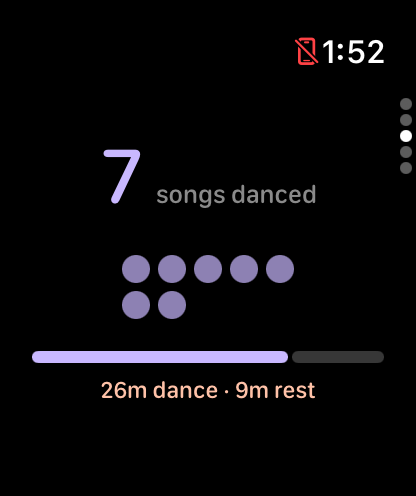
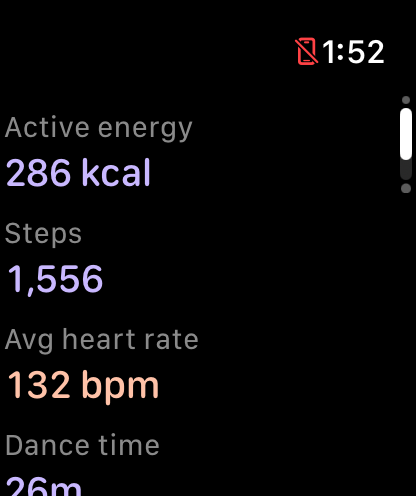
Song counts come from movement, so a long stretch of dancing or a short break can affect the estimate. Spin counting is not included in this version.
Reports on your iPhone.
After the watch sends a session to your iPhone, open it for the dance and rest timeline, heart-rate chart and measurements for each estimated song. You can edit the style, venue and notes.
Trends shows your activity by week, month or year. Filter it by dance style or session type.
Controls away from the app.
A Live Activity shows the current session on your iPhone lock screen and Dynamic Island. Widgets and watch complications show recent activity or let you start a session.
You can ask Siri to start, check or end a session. Scheduled sessions show a reminder and a Start dancing action on your watch, with a countdown on your iPhone lock screen.
In Salsamatic’s iPhone Settings tab, choose which watch pages appear and their order. You can also set song haptics, save venues and turn on optional venue tagging.
Song recognition with Plus.
Salsamatic Plus is a one-time purchase, priced at US$1.99. It adds song recognition on the watch, a Now playing page and recognised titles in your reports.
With recognition enabled, the watch listens during a session using ShazamKit. When it cannot connect, it can save an audio fingerprint and try to identify the song later.
You can export recognised songs to an Apple Music playlist. Recognition needs microphone permission and audible music; playlist export needs Apple Music permission and a subscription.
The tracking and reporting features described above work without Plus. TestFlight purchases use Apple’s test environment.
Use it for a session.
Install Salsamatic on your iPhone and paired watch. Testers receive an invitation through TestFlight.
No Salsamatic account is required.
- Open Salsamatic on your watch. Allow the Health access requested by the app so it can record the workout and read its measurements.
- Choose your dance style and session type. Use social, class or practice, then tap Start.
- Dance, with breaks when you need them. Swipe through the watch pages to check time, songs and workout measurements. Open Controls to pause or resume.
- Hold End when you finish. Review the watch summary, then tap Done. The workout is saved to Health and the report is sent to your iPhone.
- Open Sessions on your iPhone. Keep the devices nearby while the report arrives. Open the session to see its timeline and add a venue or notes.
Set up a reminder or use Siri.
In Salsamatic on your iPhone, open Settings → Scheduled sessions to add a time, style and session type. Open the watch app once so it receives the schedule, then use the Start dancing action when the reminder appears.
On the watch, try “Start a dance session with Salsamatic”, “How long have I been dancing in Salsamatic” or “End my Salsamatic session”. On iPhone, try “Schedule a dance session in Salsamatic”.
Enable Plus features.
In Salsamatic on your iPhone, open Settings and choose Unlock Plus. You can restore an existing purchase from the same section. Enable song recognition and open the watch app to allow microphone access.
After a session with recognised songs, open its report to export a playlist to Apple Music.
Contact support if a report does not arrive or a feature is not working.